XStore Documentation

My Parent Allowed Someone to Remotely Access His Computer, What Now?

This is a classic tech support scam: someone clicks on a strange website, gets a phone number, and suddenly a stranger is guiding them through giving remote access to their computer. The goal? Steal money, personal info, or install malware. It sounds unbelievable, until it happens to someone you know.

🔍 What Happened?

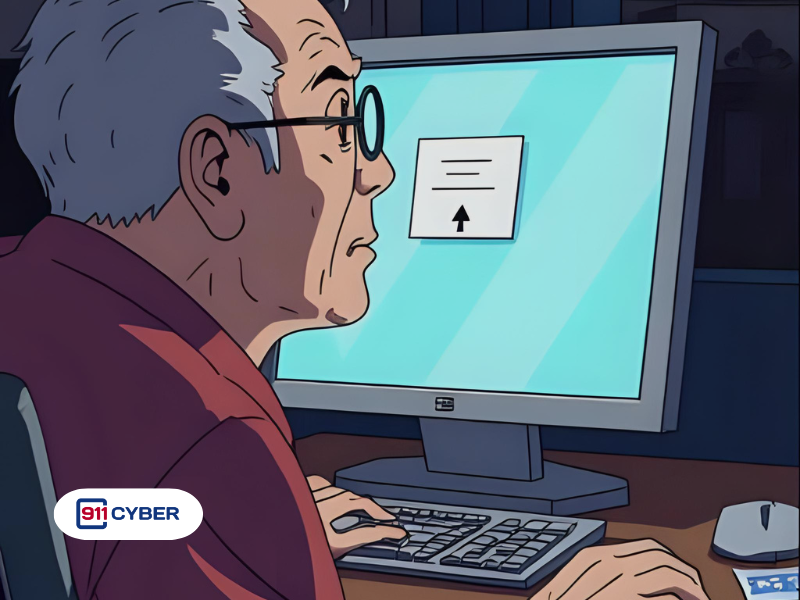
A family member visited a website when a fake pop-up appeared, warning that their computer had a serious issue. The pop-up instructed them to call a ‘tech support’ number. When they did, a scammer on the phone guided them step by step to give remote access to their computer. The scammer then tried to get them to log into their bank account, at which point the family member realized it was a scam and stopped. This is a classic tech support scam: strangers pretending to help while trying to steal money or data.

🛠️ How Does This Work?

These scams rely on social engineering. The scammer creates a sense of urgency or fear, often using fake pop-ups that claim the computer is infected or at risk. When the victim calls the provided number, the scammer pretends to be a tech support agent and guides them to install remote access software. Once connected, the scammer can view the computer, steal passwords, install malware, or try to access sensitive accounts like online banking. The key tactic is manipulating the victim into trusting a stranger and following instructions without questioning them.

🔎 What should I do?

  • Disconnect from the internet to stop further remote access.
  • Shut down the compromised computer if unsure how long it’s been exposed.
  • Use a separate, secure device to change passwords for all sensitive accounts (email, banking, social media).
  • Enable two-factor authentication (2FA) on critical accounts.

🚨 How to Tell If You’re Infected

Watch for signs that your computer or accounts may have been compromised:

  1. Unexpected behavior on your computer, programs opening or closing by themselves, strange error messages, or unusually slow performance.
  2. Unfamiliar software or browser extensions, anything installed that you don’t recognize.
  3. Suspicious pop-ups or alerts, especially messages demanding you call a number or enter credentials.
  4. Password or account alerts, emails about password changes or logins you didn’t initiate.
  5. Unexplained network activity, high data usage, unknown connections, or attempts to access accounts remotely.
  6. Financial irregularities, charges or transfers you didn’t authorize.

If you notice one or more of these signs after interacting with a suspicious website or caller, treat it as a potential compromise and take immediate action.

🛡️  Preventing Future Compromise

  • Never give remote access to strangers or unverified tech support.
  • Keep operating system and software up to date.
  • Use strong, unique passwords for all accounts.
  • Regularly backup important files offline or in a secure cloud service.
  • Educate family members on common scam tactics and red flags.

📢 Notify: Report the Incident

Reporting your compromise helps with potential recovery and prevents others from being targeted. Consider the following actions:

💡 Key Takeaway

Tech support scams rely on fear and urgency to trick victims into giving strangers access to their computers. The moment you suspect something is off, disconnect, don’t panic, change passwords from a secure device, scan for malware, and monitor accounts. Awareness and quick action are the best defense.

Get Help

Online Scam Prevention & Recovery

Schedule a free consultation

 A free 15-min cybersecurity consultation